
If you’re like most gamers, you know that your home Wi-Fi can be the source of some serious problems when it comes to gaming online from a console or PC. Lag and data loss can cause significant issues, so if you want to make sure that you’re getting the best possible connection, then you should follow these six tips on how to optimize your Wi-Fi connection for gaming.
With this advice, you’ll be able to get the fastest speeds possible while minimizing any lag and data loss issues that may affect your gameplay. Ensuring your Wi-Fi is in tip-top condition can also help improve your PC performance in other areas. So, it’s always worth giving these tips a go!
Set Up the Router Properly
Source: https://unsplash.com/photos/syCXK9WndqQ
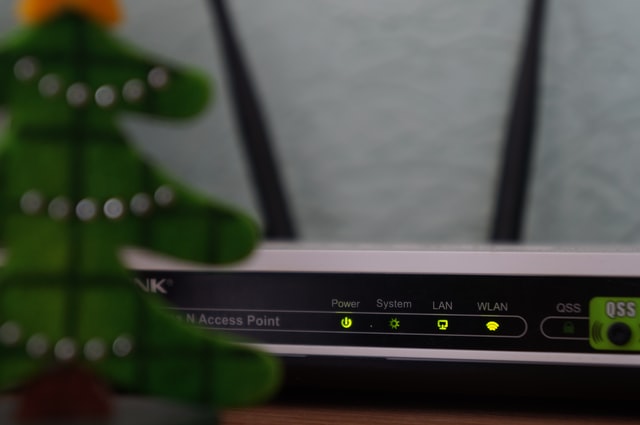
Start by checking your router’s location. The closer it is to where you spend most of your time, especially where you spend most of your time playing video games, the better. Next, make sure there aren’t any obstructions blocking or weakening signals between your computer and your wireless network.
If there are (like a wall or other electronic device), move your router and check signal strength until you have a solid connection again.
Invest in a Quality Router
A router is your gateway to getting a good connection and fast speeds – the better your router, usually, the faster your connection. You’ll need a top-of-the-line 802.11ac router to take advantage of all that bandwidth in the 5GHz range that’s been opened up by 802.11ac routers.
So how do you decide which one to buy? We recommend checking out reviews of the best wireless routers covering every important aspect while testing these products in real-life environments.
Also, if you don’t already have a reliable 4G/LTE cellular data connection, get an 802.11 ac router with MU-MIMO technology to keep those devices streaming smoothly when multiple people are accessing your Wi-Fi network at once – more on that later.
Use a USB Adapter
If you’re in an area with a weak wireless connection, consider plugging your gaming console into a nearby laptop or desktop computer. By connecting your device via USB, you can make sure it’s connected to an optimal network and minimize lag.
Some newer gaming consoles (including both Xbox One and PlayStation 4) have built-in Wi-Fi adapters, so they don’t need a USB dongle attached.
Check Your External Factors (e.g. other devices)
Consider whether your internet connection is being throttled by other users in your house or apartment – you may want to test with another Wi-Fi device. Other devices, including cell phones and smart televisions, can interfere with signal strength. So, it’s a good idea to switch off Wi-Fi on other devices that aren’t being used when you are gaming.
However, if you’re still having connectivity issues at home, it might be time to update your router software or switch routers entirely – or even consider a move if your area can’t yet access high-speed internet. The latest routers are more capable of providing a strong signal to multiple devices at the same time – sometimes up to 100 devices can be successfully connected simultaneously!
Check Your Internal Factors (e.g. device variance)
When it comes to Wi-Fi, we tend to blame our networks and routers when connections are slow or if we can’t connect at all. Sometimes, though, there’s a problem on our end, like one of the devices is just consuming too much bandwidth.
You can fix some of these issues by disabling devices you aren’t using while gaming or updating old devices. Most modern wireless adapters support multiple wireless protocols, including 802.11g and 802.11n, which handle older as well as newer devices.
Make sure your default device is configured correctly so that it takes priority when connecting new devices to your network. You should also check that all your wireless connections are secure – you wouldn’t want someone stealing bandwidth from you!
Use an Ethernet Cable

Source: https://unsplash.com/photos/SwVkmowt7qA
While you can technically connect your console to your network using a wireless connection, gaming via cable is much more reliable and will also speed up your connection. You’ll need an ethernet cable to do so, but these are relatively inexpensive (typically between $5 and $20) and are easy to find.
When you’re shopping, you’ll come across both CAT5e and CAT6 cables. The differences between the two are minimal, but CAT6 cables are capable of higher speeds and will be able to cope with newer technology as it becomes available.